Power loss recovery on 3D printers explained in one line: it is a firmware feature that saves your print’s state, such as the current layer, temperatures and position, to storage so the machine can reheat, re-home and continue after the power comes back instead of starting from zero. Whether that actually works depends on your hardware, your firmware and how long the outage lasted.
That last clause is where most guides leave you hanging. Recovery sounds like a fix, then you find out your machine rebooted, showed no resume option and started printing nothing at all. So this walkthrough covers what a checkpoint really stores, what conditions a resume needs, how to check whether your printer supports it, and the safe recovery sequence when the power does come back.
Table of Contents
- What Happens to a 3D Print During a Power Loss?
- Can a 3D Printer Resume After Power Returns?
- How Much of the Print Is Usually Lost?
- How to Check Whether Your Printer Has Recovery Features
- How to Recover a Print Safely After an Outage
- Why Does Resume Fail or Damage the Print?
- What Should You Do if the Printer Cannot Resume?
- How to Prevent Power Loss from Ruining Future Prints
- Frequently Asked Questions
- Can all 3D printers resume a print after a power outage?
- Does a UPS let any 3D printer resume where it stopped?
- Why did my 3D printer restart from the beginning after power returned?
- Is it safe to manually move the print head after power loss?
- Can I skip several layers and continue a partially completed 3D print?
- How do I clean the nozzle before attempting power loss recovery?
- Conclusion
What Happens to a 3D Print During a Power Loss?
The motors stop. That is the first thing. When power is cut, the heated bed and hotend cool, the gantry goes slack, and the live instructions coming from your computer or SD card stop being read.
What survives depends entirely on whether the firmware wrote a checkpoint first. A checkpoint, or power loss resume file, is a small snapshot of the print’s state, normally written at the start of each layer rather than continuously. Users on manufacturer community forums describe this as the standard pattern: progress saved at the layer start, so at worst the current layer is lost and the machine restarts from the last completed one.
Without a checkpoint, there is no position data at all. The part is still physically on the bed, at whatever height the outage caught it, and the printer has no idea where that was. On printers that resume, the position may be stored as layer number only, which means the nozzle often re-homes, sometimes re-levels, and finds the part by re-probing the surface rather than by remembering an exact coordinate.
Can a 3D Printer Resume After Power Returns?
Yes, on supported machines. Reconnecting power is not enough on its own, though. Several conditions have to line up.
- Printing from media. The job needs to be running from an SD card or USB flash drive. If you streamed it over USB from a computer, that computer lost power too, and the printer has no stored file to return to.
- Firmware support. The controller firmware has to implement the feature. Marlin-based machines and most modern consumer printers do; some newer control platforms, including PrusaLink running on a Raspberry Pi, have no firmware support for it at all.
- An intact file. The saved file on the card must still match the print. Re-slicing the model and printing over the card invalidates the stored state.
- Enough filament. Nothing checks your spool. If the extruder ran dry during the outage, resuming just produces a stringy mess.
- Safe temperatures. A cold bed and a cold nozzle mean poor bonding between the layers printed before the outage and the layers after it.
The mechanism also differs by firmware. Marlin writes its recovery data to the SD card itself, independent of the sending computer. Repetier’s approach leans on the host software and a computer that stays powered. That difference decides whether your printer needs the mains to come back at all.
How Much of the Print Is Usually Lost?
This table compares the three categories of machine you will meet in practice.
| Recovery type | What is saved | What restarts | Likely loss |
|---|---|---|---|
| Saved G-code checkpoints | Last layer start, temperatures, print time, commands issued up to that point | The layer in progress when power died | One layer of work plus any time spent re-homing and re-leveling |
| Resumable position memory | Layer plus axis position, sometimes a saved Z height | Motion from the resume point, often after a park move | A partial layer, and a visible seam at the join |
| No recovery state | Nothing | The entire print | Everything, though the physical part may be salvageable |
Time loss matters more than filament loss in most cases. Reheating the hotend and bed to temperature, running the levelling routine and re-homing the gantry can add twenty minutes to an overnight job, and one user reported a resume estimate of nearly twenty hours against an original estimate of just over six, with no obvious cause.
How to Check Whether Your Printer Has Recovery Features
Start with the manual for your exact model, then the firmware documentation. Look for terms like power loss recovery, power loss resume, PLR or print recovery. On Marlin builds the behaviour is configured in the firmware’s advanced configuration header, so checking that file tells you whether the routine was compiled in at all.
Menu names differ across brands, controller boards and firmware versions, so there is no single universal path to a recovery screen. Some printers bury it under settings, some surface it as a prompt on the display after a restart, some only offer it when the interrupted file is still in the print queue.
Two practical checks beat guessing. Look in the printer’s menu tree for a recovery or resume entry before you ever need it, and then run a short test print from media, pull the power for ten seconds mid-print, and confirm that the resume prompt comes back. Forum advice repeats this constantly: test recovery on a small print before trusting it with a thirty-hour job.
How to Recover a Print Safely After an Outage
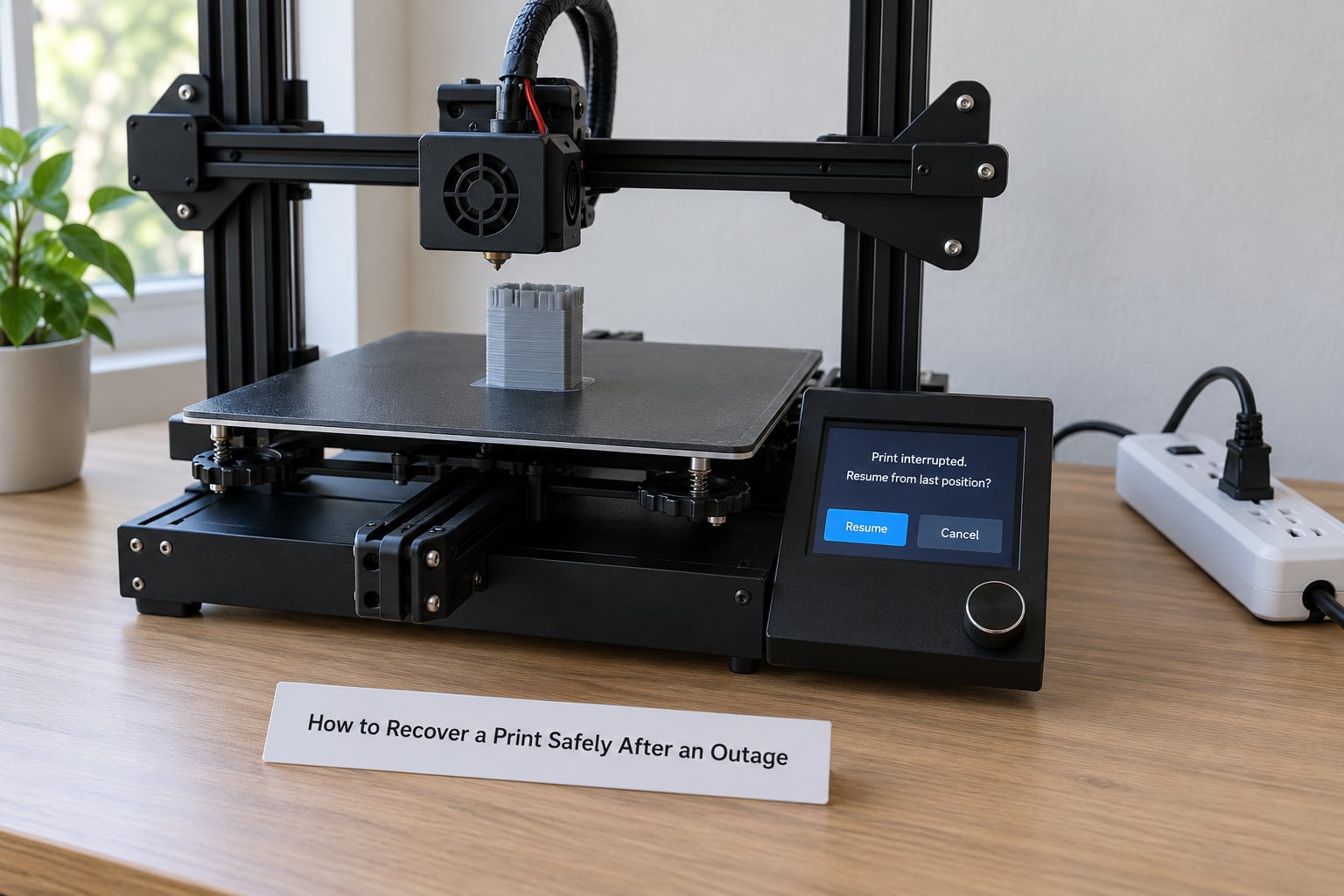
Do not touch the machine the moment the lights come on. The controller boots, the heaters start and the Z axis is unaware of where it stopped. Give it a minute, then work through the sequence.
- Confirm power is stable. If the outage is a brownout or a flapping supply, the printer will repeat the cycle. Check whether the breaker or the mains is holding steady before anything else.
- Let the boot finish. Wait for the controller to complete its startup and mesh or level routine if it runs one at power-on. Interrupting that is how you end up with a crash.
- Look at the print. Without moving any axis, check the part with a light. Is it still on the bed, is it standing square, has it curled or detached?
- Confirm recovery data exists. Check for the resume option on the display, or look for a recovery file in the print folder on your card. No file means no resume.
- Clear the nozzle. Power returns mid-move often leaves a small blob of cooled plastic at the tip. Warm the hotend and wipe or purge it before resuming, or that blob will drag across the new layers.
- Use the documented resume. Take the machine’s own resume or recovery option and let it run its preheat, park, re-home and continue sequence.
What to avoid: manually jogging the axes to find the layer height, forcing a resume option the machine does not actually offer, or pushing the bed or gantry by hand to free a stuck nozzle. Stepper motors hold position only while powered. Push against them when the machine is off and you can lose a stepper alignment, which the printer will not detect until the print is ruined.
If the machine runs a power panic routine, that is the firmware trying to lift the gantry and settle the motors on a full step before the power dies. If that routine never gets to run, the Z motors can stop between steps and drift by more than one step on resume, which is one reason a restored print can end up slightly out of alignment.
Why Does Resume Fail or Damage the Print?
Here is the practical failure list, roughly in order of how often it comes up.
The resume option never appears. This is the single most reported problem. Usually the cause is not a fault at all: the print was streaming from a computer or network drive, the card was removed, the file was renamed, or the machine was printing from a slot the firmware does not monitor.
It crashes right after levelling. The resume routine homes and re-levels, then the nozzle drives into the part. Some users work around it by disabling the auto-level step on resume if their firmware exposes that option, but that trades a crash risk for a collision risk, so I would only do it after watching where the nozzle sits.
There is an extrusion gap or a blob at the seam. The nozzle resumes slightly out of step with the saved extrusion state, so the first moves either ooze or starve. A small manual extrusion while paused before resuming is a commonly reported workaround. Expect a visible line on the finished part either way.
The part detached or shifted. If the bed cooled to room temperature, the first layers may have let go. This is why engineers describe recovery as realistic only for outages of a few minutes.
Cold-layer bonding is weak. New layers laid on a cold previous layer bond poorly, so the seam becomes the weakest point in the part even when the surface looks fine.
Z-axis drift or a layer shift. Usually traced back to the missed power panic routine, a loose belt or a collision during the stop.
Resume loops. The printer offers to resume, fails to verify, and offers again. Repeatedly forcing it wears SD card writes and rarely fixes anything.
Everything runs slower afterwards. Several users report a much longer remaining time after a power event with no visible cause. Sometimes it is the firmware recovering a flow or temperature state it never got to update.
One more oddity worth knowing: on some Marlin 2.1.x bug-fix builds, enabling power loss recovery made the hotend pause every few movements during normal printing. Recovery code occasionally degrades ordinary printing, so update firmware before a long job rather than after.
What Should You Do if the Printer Cannot Resume?
Accept that the file is gone and work through the physical part instead. There is no menu path to a print the firmware never recorded.
- Clear the nozzle first. Heat to temperature, wipe the tip, and confirm filament flows before you judge anything else.
- Check whether the part is still attached. If it has lifted at one corner, the remaining section may still be worth saving.
- Measure the failure height. Calipers across the last good layer give you the Z offset for a continuation piece.
- Slice a continuation print. In most slicers you set the model’s Z offset so only the missing top section is printed, with a small overlap for a solid join.
- Join and finish. Match the adhesive to the filament: cyanoacrylate for PLA, epoxy for PETG, and an acetone slurry for ABS or ASA.
Skipping straight to a lower layer instead of slicing a continuation piece sounds tempting, but it is not universally safe. Skipped layers remove support geometry and change how the missing section lands on the layer below, so the fit can be worse than restarting. One user describes finding the failure height, erasing the G-code up to that point and continuing, which works but takes real practice.
If you were warned about a planned outage, stop the print properly instead. Pause it, drop the hotend target to zero so the nozzle does not cook for hours, and leave the bed heated if you can. Then let the power go cleanly so the firmware runs its own shutdown state instead of dying mid-layer.
How to Prevent Power Loss from Ruining Future Prints
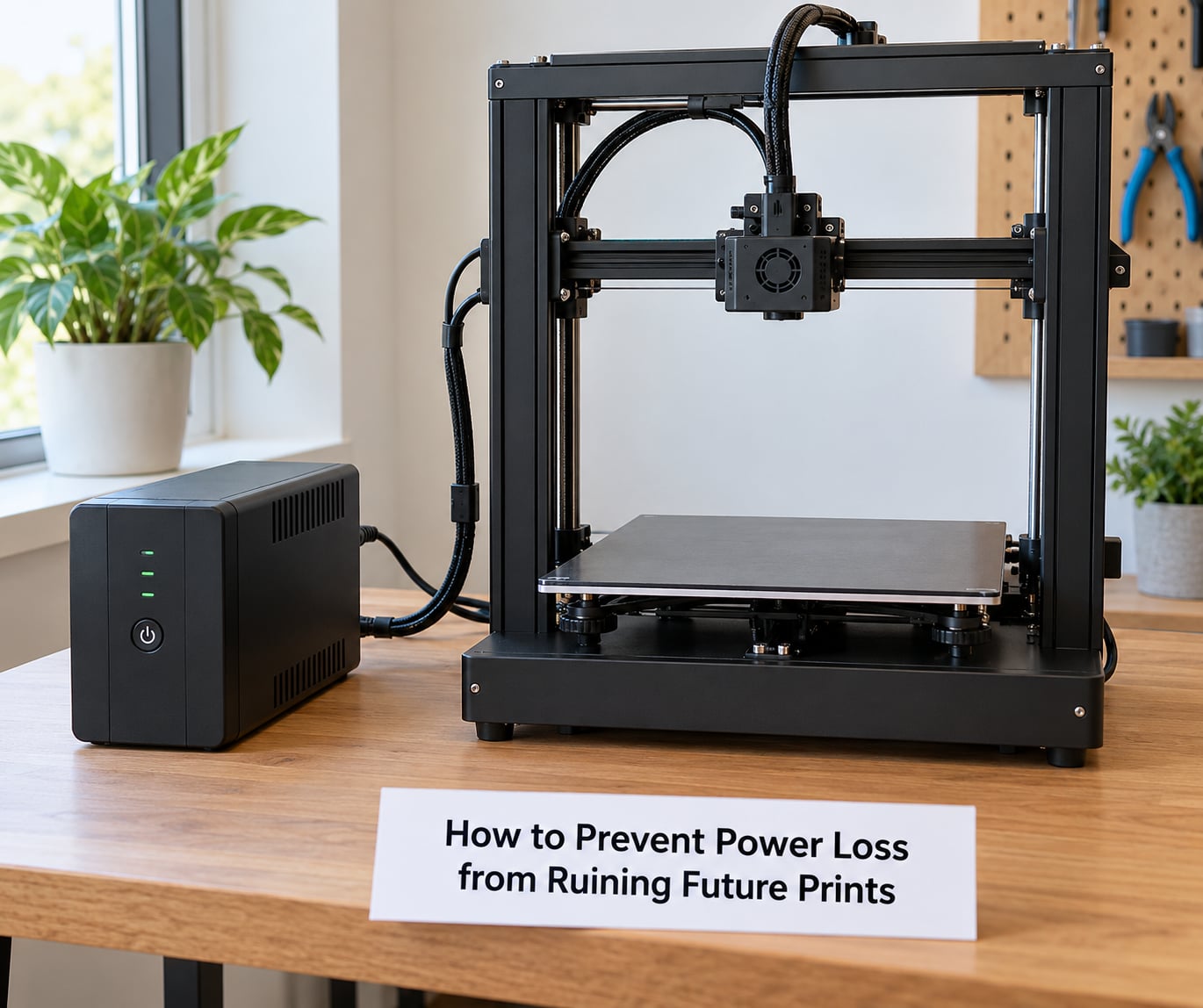
A UPS solves the problem that recovery only papers over. Once the electronics stay powered, nothing is lost in the first place.
- Work out your real load. The heated bed dominates. A bed that pulls roughly 100 to 200 watts while heating, plus a hotend and the controller, puts many home printers in the 200 to 350 watt range at peak.
- Convert watts to VA. VA equals watts divided by the power factor, commonly 0.6 to 0.8 for this kind of unit. A 300 watt printer load lands somewhere around 375 to 500 VA once you allow for it.
- Add headroom. Size the unit above your peak load rather than at it. An 800 to 1000 watt class UPS gives room for a heated bed at full temperature plus startup surges.
- Check runtime at that load. Runtime falls steeply once heaters are in the mix. Five to ten minutes is usually enough to finish an orderly shutdown, which is all you need.
- Set the shutdown threshold low. Have the UPS signal the printer to shut down cleanly rather than cut out mid-print.
That last point is the honest ceiling of this whole topic. A UPS preserves printer state and buys an orderly stop. It cannot recover state the printer never recorded.
A few other habits pay off. Keep recovery enabled in the firmware but keep your SD card healthy, because the checkpoint writes wear cards over time and one frequent complaint is a card that fails after months of use. Run nozzle maintenance on a schedule so a partial blockage does not become a blob at the wrong moment. And if you run several machines, remember that recovery matters far more at scale: a single three-minute outage on a farm can kill several jobs at once, which is exactly the case where recovery-enabled firmware plus per-machine UPS protection is worth the setup.
Resin printers are a separate problem entirely. There is no layer checkpoint to save, and a long cure or wash sequence has to start over, so the answer there is protection rather than recovery.
Frequently Asked Questions
Can all 3D printers resume a print after a power outage?
No. Resume depends on the controller firmware and on how the job was sent to the machine. Printers with recovery support can restart from a saved layer, while machines running firmware without it, or jobs streamed from a computer rather than an SD card or USB drive, have nothing to return to. Check your manual and firmware documentation first.
Does a UPS let any 3D printer resume where it stopped?
Not by itself. A UPS keeps the electronics powered long enough for an orderly shutdown or a proper state save, which prevents most losses. It does not create recovery data that the firmware never wrote. The two work together: recovery handles brownouts and short interruptions, and a UPS stops long outages from ever reaching the point of no return.
Why did my 3D printer restart from the beginning after power returned?
Usually there was no checkpoint to resume from. Streaming a print from a computer means no saved state, and some firmware platforms have no recovery routine at all. A renamed or re-sliced file on the card also breaks the match. If your machine simply rebooted and started over, check that it was printing from media and that recovery is enabled before the next long job.
Is it safe to manually move the print head after power loss?
It is rarely safe. Stepper motors hold position only while powered, so pushing the gantry or bed by hand when the machine is off can lose alignment the firmware cannot detect. Let the printer run its own re-home and re-level sequence, and inspect the part with a light instead of reaching for the axes.
Can I skip several layers and continue a partially completed 3D print?
You can slice a continuation piece, but jumping the file forward past several layers is risky. Skipped layers remove support geometry and change how the missing section lands on what is underneath, so the fit can be worse than reprinting. Measure the failure height with calipers and print only the missing section with a small overlap instead.
How do I clean the nozzle before attempting power loss recovery?
Heat the hotend to printing temperature, then wipe or purge the tip until filament flows evenly with no stringing. Power often returns mid-move and leaves a cooled blob on the nozzle that will drag across new layers and leave a groove. A short purge line before resuming removes it, and the same check catches a partial clog early.
Conclusion
Power loss recovery on 3D printers explained comes down to two checks: read your printer’s manual for its recovery option, then look at the card for recovery data. If both exist, let the machine run its own preheat, park and resume sequence. If either is missing, the file is gone and the practical work is saving the physical part instead.
Keeping printer state and continuing a print are two different things. Recovery preserves state the firmware recorded, and it holds up best for brownouts and short interruptions. Everything longer than that is a job for power protection.